Two laptops, one good monitor, and a drawer full of cables you replug twice a day. A USB-C KVM switch promises to end that: one cable to each machine, one button, and the screen, keyboard, mouse, and charger all follow whichever computer you picked. The promise is real, but the fine print in this category is unusually sharp, and it is where most of the disappointment lives.



These switches split into two camps. Some pass a full USB-C signal through to a USB-C monitor or a docking station, keeping everything on one connector end to end. Others take USB-C from each computer and output plain HDMI, which is cheaper and works with the monitor you already own. Both are valid; they fail in different ways, and knowing which camp you need decides the purchase.
At a glance
| Product | Standout features | Price tier | Link |
|---|---|---|---|
| Cable Matters 20Gbps USB-C KVM (2 computers) | Shares a USB-C monitor or dock, 140W charging, RF remote, cables included | Mid-range | |
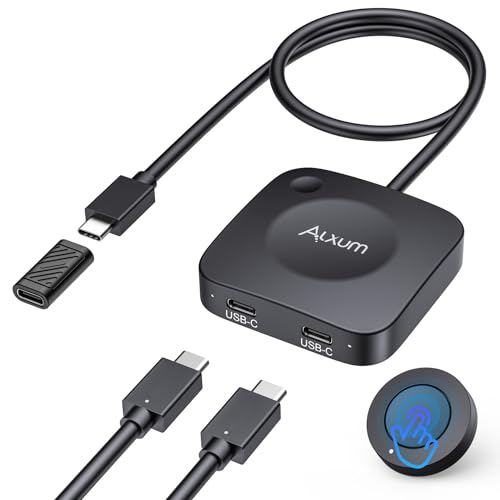
| Alxum 20Gbps USB-C Switch | 8K at 30Hz or 4K at 144Hz, 140W pass-through, wireless remote | Mid-range | |
| MINIX K1 | 4K at 120Hz HDR over HDMI, front-facing USB ports, aluminum body | Mid-range | |
| MLEEDA USB-C KVM Switch | 4K at 60Hz, button and wired remote, lowest price here | Budget | |
| Cable Matters 3-in-1-Out KVM | Three computers on one dock or monitor, 140W, RF remote | Premium | |
How to choose a USB-C KVM switch
What “one cable” actually means
The single cable in question is the one between the switch and each computer. That cable carries video out, keyboard and mouse in, USB data both ways, and power back to the laptop, all at once. Everything downstream, the monitor, the hub, the charger, plugs into the switch and stays put. So the real count is one cable per computer plus a small pile that you connect once and never touch again.
Where the camps differ is the monitor side. A pass-through switch sends USB-C onward to a USB-C monitor or a docking station, and your existing dock keeps doing its job for whichever laptop is active. An HDMI-output switch converts the video and gives you an HDMI port, which is what almost every monitor already has. If you own a USB-C monitor or a Thunderbolt dock, the first camp preserves that investment. If you own an ordinary HDMI monitor, the second camp is cheaper and simpler.
The bandwidth catch nobody advertises
This is the single most useful thing to understand here. Thunderbolt 4 and most good docks run at 40Gbps. The switches in the pass-through camp run at 20Gbps. Putting a 20Gbps switch between a 40Gbps laptop and a 40Gbps dock halves the pipe, and Cable Matters is refreshingly direct that this can reduce display stability or cap resolution and refresh rate compared with plugging the dock in directly.
In practice a single high-resolution display is generally fine. Dual displays through a dock is where it gets tight: the Alxum notes a 4K at 60Hz ceiling in that configuration, and connecting Thunderbolt 3 gear drops you to one display at 4K at 60Hz. If your setup is one monitor, this rarely bites. If it is a dock driving two 4K panels, expect compromise.
Docks, pigtails, and captive cables
Pass-through switches connect to your dock with a short attached lead, called a pigtail. That lead has to reach a free USB-C socket on the dock, which means docks with their own permanently attached host cable are a problem: two pigtails cannot plug into each other. Cable Matters says plainly to avoid docks with non-detachable host cables. Alxum supports docks with pigtails no longer than 50cm, and states outright that Dell docking stations are not supported.
Check your specific dock before ordering. This is the most common reason one of these switches goes back.
Use the cables in the box
It sounds like boilerplate; it is not. Both Cable Matters models say to use only the included USB4 cables and specifically not to substitute Thunderbolt cables, and Alxum says the same. USB-C cables vary enormously in what they actually carry, and a cable that works perfectly between a laptop and a dock can fail through a switch. If a switch misbehaves, the cable is the first suspect.
Power delivery, and which laptop gets fed
Pass-through charging means your laptop stays powered through the same cable that carries video, which is the whole point. Rated at 140W, as on the Cable Matters and Alxum units, that covers a large laptop; 100W, as on the MINIX, covers most. Two caveats: the power supply itself is usually not included, and the charge generally goes only to the computer currently selected. If you need both machines charging around the clock, a switch is not the tool for that.
How you switch
A button on the box works, but only if the box is within reach. A wired remote puts the button on the desk. An RF remote does it wirelessly from anywhere nearby, which is the nicest of the three when one machine lives in a bag or on a shelf. None of these need drivers, which also means none of them offer hotkey switching from the keyboard.
Laptops, not desktops
Every switch here needs a USB-C port that supports DisplayPort Alt Mode, which is a laptop, tablet, or phone feature. A desktop tower that outputs video only through HDMI or DisplayPort cannot feed one of these, because the video has to come out of the USB-C port. Check that your machine’s USB-C port carries video before anything else.
Cable Matters 20Gbps USB-C KVM Switch for 2 Computers
The most complete expression of the pass-through idea. A pigtail goes to your USB-C monitor or Thunderbolt 4 dock, a supplied USB4 cable goes to each laptop, and an RF remote sits on the desk. It handles 8K at 30Hz or 4K at 144Hz on Windows and 4K at 60Hz on macOS, passes up to 140W to whichever machine is active, and turns an ordinary dock into a two-computer KVM. What earns it the top spot is the box: pigtail, remote, two USB4 cables, and hook-and-loop pads, so nothing else is needed. Cable Matters is also unusually candid about the limits, which is worth something in a category full of quiet omissions.
Pros
- Turns an existing USB-C monitor or Thunderbolt 4 dock into a KVM
- Up to 8K at 30Hz, or 4K at 144Hz on Windows
- 140W pass-through charging to the active laptop
- RF remote, no drivers or software
- Both USB4 cables supplied, so no cable guesswork
- Real documentation of the bandwidth trade-off
Cons
- 20Gbps through a 40Gbps dock can limit resolution or stability
- Will not work with docks that have a captive host cable
- macOS is limited to one display
- Only the included cables are reliable
Best for: anyone who already owns a good USB-C monitor or Thunderbolt dock and wants two laptops sharing it.
Alxum 20Gbps USB-C Switch
Functionally close to the Cable Matters two-port unit and a little cheaper, with the same 20Gbps pipe, the same 140W pass-through, and the same 8K at 30Hz or 4K at 144Hz ceiling. It adds a male USB-C connector that plugs straight into a dock’s socket for the cleanest possible connection, with an adapter cable for docks that need it. It works with Windows, macOS, and Linux, and it is small enough to travel. The compatibility notes are strict, though: Dell docking stations are explicitly unsupported, and dock pigtails must be under 50cm.
Pros
- Direct male USB-C connection to a dock for best performance
- 8K at 30Hz or 4K at 144Hz support
- 140W pass-through charging
- Wireless remote plus a button on the unit
- Windows, macOS, and Linux, no software needed
- Compact enough to carry between desks
Cons
- Does not support Dell docking stations at all
- Dock pigtails must be no longer than 50cm
- Thunderbolt 3 gear drops it to one display at 4K at 60Hz
- Power supply not included
Best for: a two-laptop desk built around a USB-C dock, where the small saving over the Cable Matters unit matters.
MINIX K1
The pick for a normal monitor. Two USB-C inputs go to your laptops, HDMI comes out the back to whatever screen you own, and 4K at 120Hz with HDR is a genuinely high ceiling for this camp. The detail that makes it pleasant to live with is the front panel: one USB-C and two USB-A ports right where your hand is, so a flash drive or a phone does not mean reaching behind the desk. The aluminum shell helps it disappear next to a laptop, and both USB-C cables are supplied.
Pros
- 4K at 120Hz with HDR over HDMI, high for an HDMI-output switch
- Front-facing USB-C and two USB-A ports for everyday plugging
- Works with any HDMI monitor, not just USB-C ones
- 100W PD charging through your existing charger
- Aluminum build, both USB-C cables included
- Broad OS support including Android
Cons
- HDMI cable not included, and 4K at 120Hz needs an HDMI 2.1 cable
- Not compatible with Apple monitors
- Charging only reaches the currently connected device
- No remote, so the box needs to be within reach
Best for: two laptops sharing an HDMI monitor, where a high refresh rate and easy port access both matter.
MLEEDA USB-C KVM Switch
Roughly a third the price of anything else here, and it does the core job. Two laptops, one HDMI monitor at 4K at 60Hz, one USB port that you can expand with a hub for keyboard, mouse, and printer. You get both a button on the unit and a 1.5m wired remote, with LED indicators showing which machine is live. The limits are stated openly: it needs its USB power cable connected, it works with hubs but not docking stations, and it is for Windows and macOS laptops only. For a straightforward two-laptop desk, that list may not cost you anything.
Pros
- Budget tier by a wide margin
- 4K at 60Hz over HDMI, plus 1440p at 120Hz
- Wired remote and a physical button, with clear LED indicators
- Works with any HDMI monitor
- Simple, no drivers, nothing to configure
Cons
- No pass-through charging for your laptops
- Supports USB hubs but not USB-C docking stations
- Must be powered by its own USB cable
- Laptops only, Windows and macOS
- One USB port, so a hub is effectively required
Best for: a simple two-laptop setup on an HDMI monitor, where charging is handled separately anyway.
Cable Matters 3-in-1-Out USB-C KVM Switch
Three machines, one dock. A work laptop, a personal laptop, and a test machine can all live on the same monitor and keyboard, switched from an RF remote. It carries the same 20Gbps pass-through, the same 140W charging, and reaches 8K at 30Hz, 5K at 60Hz, or 4K at 144Hz on Windows. Almost nothing else in the single-cable category goes past two inputs, which is exactly why it sits at the premium tier. The same cable and dock rules apply, and the three-computer configuration is a Windows feature.
Pros
- Three computers on one monitor or dock, rare in this category
- Up to 8K at 30Hz, 5K at 60Hz, or 4K at 144Hz on Windows
- 140W pass-through charging to the active machine
- RF remote, no drivers
- Converts an existing dock rather than replacing it
Cons
- Premium tier, the most expensive here
- Three-computer control is Windows only
- Same 20Gbps limit against a 40Gbps dock
- Will not work with captive-cable docks
Best for: a desk with three machines, where switching by hand has become a daily tax.
The verdict
Popularity data is not available for this category, so these picks are judged on capability and on how accurately each product describes its own limits.
Best overall: Cable Matters 20Gbps USB-C KVM Switch for 2 Computers. It covers the common case completely: two laptops, an existing USB-C monitor or dock, high resolution, 140W charging, and an RF remote. Both USB4 cables are in the box, which matters more here than it should, because the wrong cable is the usual cause of failure.
Best value: MLEEDA USB-C KVM Switch. It costs a fraction of the rest and still does the central job on any HDMI monitor. Give up pass-through charging and dock support and the saving is substantial.
Best premium: Cable Matters 3-in-1-Out. A third input is genuinely hard to find, and if you run three machines it is the only sensible answer here.
If your monitor is HDMI rather than USB-C, the MINIX K1 is the better shape than either pass-through unit, and its front ports are a daily convenience. The Alxum is the alternative to the Cable Matters two-port, worth it if your dock is on its supported list.
Frequently asked questions
Will a USB-C KVM switch work with my desktop PC?
Only if the desktop has a USB-C port that outputs video through DisplayPort Alt Mode, which most towers do not. If your machine sends video out of an HDMI or DisplayPort socket only, these switches cannot take that signal. They are built for laptops, tablets, and phones.
Why do these switches insist on the cables in the box?
USB-C is one connector covering many different capabilities, and cables differ hugely in what they carry. A cable rated for charging alone will not pass video. The supplied USB4 cables are matched to the switch, and both Cable Matters and Alxum specifically warn against substituting Thunderbolt cables.
Will I lose display quality by putting a switch between my laptop and dock?
Possibly. These switches run at 20Gbps while most docks and Thunderbolt 4 ports run at 40Gbps, so the switch becomes the narrowest point. One display is usually unaffected. Two 4K displays through a dock is where you may see a lower refresh rate or the occasional dropout.
Can both computers charge at the same time?
Generally no. Pass-through power delivery feeds the computer currently selected, so the idle machine is not charging. If both need to stay topped up continuously, keep a second charger on the idle one.
Can I switch with a keyboard shortcut?
Not on these. Hotkey switching needs software or a driver, and none of these use one, which is also why they work identically on Windows, macOS, and Linux. You switch with a button, a wired remote, or an RF remote depending on the model.
Will one work with my docking station?
Check before you buy. Docks with a permanently attached host cable will not work with the pass-through models, because there is no free socket for the switch’s pigtail. Alxum additionally does not support Dell docking stations, and needs any dock pigtail to be under 50cm.
This article may contain affiliate links; see our Affiliate Disclosure.