An access point is the plain answer to bad Wi-Fi in the back bedroom, and it works for one reason: the signal arrives on a cable instead of being caught out of the air and shouted again. That is the whole idea. It is also why the wire matters more than the Wi-Fi number on the box, and why one of the cheapest devices here quietly cannot deliver what the label promises.
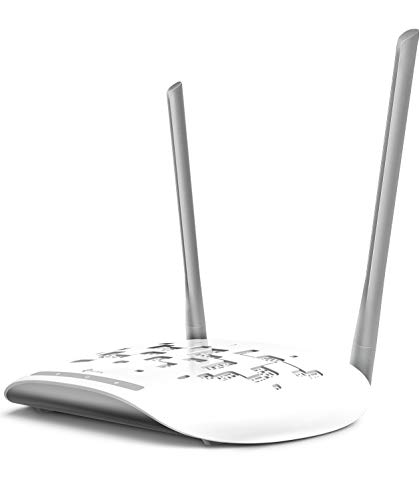

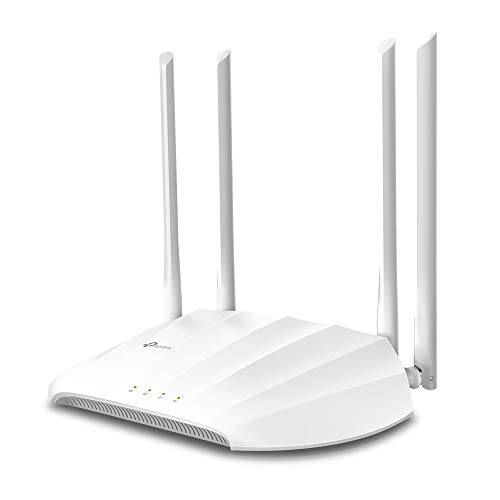


Everything here plugs into an existing router with an Ethernet cable and turns that cable into strong Wi-Fi where you need it. None of them replaces your router. That is the point: the router stays where the internet enters the house, and the Wi-Fi moves to where the people are.
At a glance
| Access point | Standout feature | Price tier | Link |
|---|---|---|---|
| TP-Link TL-WA801N | Cheapest real access point; 2.4 GHz only | Budget | |
| TP-Link Archer A54 | Best seller here, but 100 Mbps ports | Budget | |
| TP-Link TL-WA1201 | Gigabit and dual band, no controller needed | Budget | |
| TP-Link EAP225 | Cheapest way into Omada roaming and mesh | Mid-range | |
| TP-Link EAP610 | Wi-Fi 6 with free cloud management | Mid-range | |
| TP-Link Omada BE5000 | Wi-Fi 7 and the only 2.5 Gbps port here | Premium | |
| NETGEAR WAX210PA | No controller, no cloud account, plain web page | Premium | |
How to choose an access point
An extender is not an access point, and the difference is the whole article
Start here, because the shops file both under the same heading. An extender listens to your router’s Wi-Fi and repeats it. It receives and transmits on the same radio, so roughly half the speed disappears before anything reaches your laptop, and it only repeats whatever weak signal it managed to hear. An access point takes the signal off a cable, at full strength, and broadcasts fresh. Same box, same price bracket, completely different result. If you can get a cable to the far end of the house, the cable wins, and this page assumes you have one.
The wire is only as fast as the port on the box
This is where the marketing and the hardware disagree. The Archer A54 is an AC1200 device, and 1200 sounds like 1,200 Mbps. Its Ethernet ports are 10/100, so the cable feeding it carries at most 100 Mbps, and every device on it shares that no matter what the radio can do. On a 500 Mbps plan, four fifths of what you pay for stops at that port. Look for the word gigabit, which the TL-WA1201, EAP225, EAP610 and NETGEAR all carry, or the 2.5 Gbps port on the Wi-Fi 7 model. A backhaul that throttles is not a backhaul.
Power over Ethernet saves you a socket
The good spot for Wi-Fi, high on a wall or a ceiling, rarely has a power outlet. Power over Ethernet sends electricity down the same network cable that carries the data, so one wire does both jobs. The TL-WA801N and TL-WA1201 use passive PoE with an adapter in the box. The Omada models and the NETGEAR take proper PoE from a switch, and the Wi-Fi 7 model includes a plug adapter too. This one feature decides where you can mount it.
Seamless roaming usually needs a controller
Every business access point advertises seamless roaming and mesh, meaning your phone hands over from one unit to the next as you walk, without dropping the call. Read the fine print: TP-Link states plainly that on the EAP225, Omada mesh and roaming require an Omada controller. That is free software on a computer, a free cloud account on the newer models, or a hardware box you buy. The EAP610 and the Wi-Fi 7 model include free Omada cloud management. If you want none of it, the NETGEAR is set up from a plain web page.
How many, and how far apart
Coverage figures are optimistic. TP-Link quotes 1,000 square feet for the A54, assuming an open floor with nothing in the way. Real walls, especially brick or foil-backed insulation, eat a lot of it. Two cheap gigabit units in the right rooms beat a single premium one in the wrong room, every time.
Wi-Fi 6 and 7 are about crowds, not top speed
The headline numbers get the attention; the real gain is elsewhere. Wi-Fi 6 features like OFDMA let one access point talk to many devices at once rather than strictly in turn. NETGEAR rates its unit for 128 registered devices and about 30 active. With a couple of phones and a laptop you will not notice. With cameras, speakers, a doorbell, three TVs and a family, that is what stops the evening slowdown.
TP-Link TL-WA801N
The cheapest genuine access point here, and clear about what it is: 2.4 GHz only, 300 Mbps, two fixed antennas, four modes covering access point, range extender, bridge and multi-SSID. Passive PoE puts it up to 100 feet from the power source on one cable, which for a garage, shed or loft is exactly the flexibility you want. The 2.4 GHz band travels furthest through walls, so for a distant corner with phones and smart plugs rather than 4K streaming, it is aimed correctly.
Pros:
- Cheapest real access point on this page
- Passive PoE with up to 100 feet of cable freedom
- Four modes including bridge and multi-SSID
- 2.4 GHz reaches furthest through walls
Cons:
- No 5 GHz band at all; 300 Mbps ceiling
- WPA2 rather than WPA3
- Not enough for streaming or heavy use
Best for: pushing basic coverage into a shed, garage or far corner for very little.
TP-Link Archer A54
By a wide margin the best-selling device here, and it earns that as a router: dual-band AC1200, 867 Mbps on 5 GHz and 300 on 2.4, four external antennas, WPA3, IPTV support and around 1,000 square feet of quoted coverage, for less than most access points cost. It has an AP mode that turns a wired connection into a wireless network. The catch is the four 10/100 ports, which cap the cable feeding it at 100 Mbps. As a router on a modest plan it is a lot of value. As the far end of a backhaul, that port is the ceiling on everything behind it.
Pros:
- Far and away the most popular device here
- Dual band AC1200 with four external antennas
- WPA3, the current Wi-Fi security standard
- Cheaper than most dedicated access points
Cons:
- 10/100 ports cap the wired feed at 100 Mbps
- A router in AP mode, not a purpose-built access point
- No PoE, so it needs a socket wherever it goes
Best for: a cheap dual-band router; a compromise as a backhauled access point.
TP-Link TL-WA1201
The sensible starting point, and the cheapest device here that does not compromise on what matters. A dual-band AC1200 access point with a gigabit port, so the cable is not the bottleneck, and Wave 2 MU-MIMO to serve several devices at once instead of one at a time. Four external antennas with beamforming aim the signal at your devices rather than the walls. It runs in client, multi-SSID, range extender or AP mode, ships with its own passive PoE adapter, needs no controller or account, and carries a limited lifetime warranty.
Pros:
- Gigabit port; the cable is not the limit
- PoE adapter included in the box
- Four modes and no controller or cloud account required
- MU-MIMO and beamforming with four external antennas
Cons:
- Wi-Fi 5 rather than Wi-Fi 6
- Passive PoE, not the standard a business switch supplies
- No centralized management if you add a second one
Best for: one strong access point at the end of a cable, set up in ten minutes.
TP-Link EAP225
The cheapest way into a proper managed system: an AC1350 gigabit access point with Wave 2 MU-MIMO, band steering and a ceiling or wall mount, built to sit alongside others under Omada so several units behave as one network with one name. Mesh and seamless roaming are the reason to buy it, and TP-Link says outright that both need an Omada controller. Bought alone without one, it is a competent single access point and you have paid for features you are not using.
Pros:
- Cheapest entry into Omada centralized management
- Gigabit port with Wave 2 MU-MIMO and band steering
- Designed for ceiling or wall mounting
- Scales cleanly as you add more units
Cons:
- Mesh and roaming require an Omada controller
- Wi-Fi 5, and slower than the EAP610 for less money saved
- Overkill as a single standalone unit
Best for: the first of several access points that will share one network name.
TP-Link EAP610
The balanced pick. A true Wi-Fi 6 AX1800 access point on a gigabit port, with OFDMA and 1024-QAM, which in practice means it handles a house full of devices rather than one fast laptop. It includes free Omada Essentials cloud management, no fee and no controller hardware, so the mesh and roaming the EAP225 asks you to fund separately come included. The slim body disappears into a ceiling. It sits between the older Wi-Fi 5 units and the Wi-Fi 7 model, and for most homes it is the right stopping point.
Pros:
- Real Wi-Fi 6 AX1800 with OFDMA for busy households
- Free Omada cloud management, no controller to buy
- Gigabit port and standard PoE from a switch
- Slim body that blends into a ceiling
Cons:
- Gigabit port, not the 2.5G of the Wi-Fi 7 model
- Costs noticeably more than the TL-WA1201
- The Omada platform is more than a one-unit home needs
Best for: a busy house with many devices and no appetite for extra hardware.
TP-Link Omada BE5000
The only Wi-Fi 7 device here and the only one with a 2.5 Gbps port, which matters more than the Wi-Fi generation does. A gigabit port caps a backhaul at 1 Gbps; this one does not, so as plans climb past that the cable stays. The radios are dual-band 4-stream Wi-Fi 7, 4,324 Mbps on 5 GHz plus 688 on 2.4, with Multi-Link Operation. It takes PoE+ or the included DC adapter, carries a five year warranty, and brings the full Omada set: VLANs, bandwidth management, scheduling, mesh and roaming. It undercuts the NETGEAR while being a generation ahead.
Pros:
- The only 2.5 Gbps port here; no ceiling on the backhaul
- Wi-Fi 7 with Multi-Link Operation
- PoE+ or the included DC adapter
- Cheaper than the Wi-Fi 6 NETGEAR, with a five year warranty
Cons:
- Dual band, so no 6 GHz to go with the Wi-Fi 7 badge
- Most of the speed needs Wi-Fi 7 devices you may not own
- Omada is a business platform with a learning curve
Best for: wiring the house once and not revisiting it for years.
NETGEAR WAX210PA
The clearest listing on the page, opening with the line that it is not a router or a repeater and needs an existing router and an Ethernet connection. That is the right expectation to set. A Wi-Fi 6 AX1800 unit on a 1G PoE port, rated for 128 registered devices and around 30 active, powered by the included adapter or any PoE switch. The appeal is the setup: a built-in web page in any browser, no app, no cloud account, no controller. It is the most expensive thing here and a generation behind the Wi-Fi 7 model that costs less, and it asks nothing of you but a browser.
Pros:
- Configured from a plain browser page; no app, cloud or controller
- Wi-Fi 6 AX1800 rated for 128 devices, about 30 active
- Included adapter or PoE from a switch
- The listing is clear about what it is and is not
Cons:
- Most expensive here, and Wi-Fi 6 against a cheaper Wi-Fi 7
- 1G port where the Omada BE5000 gives 2.5G
- No central management if you add a second unit
Best for: one solid access point set up in a browser and then forgotten.
The verdict
The Archer A54 outsells everything else here many times over, and it does not take a slot, for one specific reason: its 10/100 ports cap the cable at 100 Mbps. As a cheap dual-band router it is genuinely good value. As the far end of a wired backhaul, it throttles the exact thing you ran the cable for.
Best overall: TP-Link EAP610. Real Wi-Fi 6 on a gigabit port, so neither the radio nor the cable is the weak link, and OFDMA to keep a house full of phones, cameras and TVs from tripping over each other. The deciding detail is the free Omada cloud management: the mesh and roaming the EAP225 wants a controller for arrive included. Add a second later and they behave as one network.
Best value: TP-Link TL-WA1201. The cheapest device here that gets the important part right. A gigabit port means the backhaul is not throttled, the PoE adapter is in the box so you can mount it away from a socket, and MU-MIMO with beamforming and four antennas covers a room properly. No controller, no account, no platform. It is Wi-Fi 5, and for one access point at the end of one cable that is rarely what you notice.
Best premium: TP-Link Omada BE5000. The only 2.5 Gbps port on the page, which is the one specification that dates slowest, and Wi-Fi 7 radios behind it. It costs less than the Wi-Fi 6 NETGEAR, takes PoE+ or its own adapter, and carries a five year warranty. If you are pulling cable through walls you would rather not open again, put this at the end of it.
FAQ
Will an access point replace my router?
No, and none of these tries to. They all need an existing router and an Ethernet cable back to it; NETGEAR says so in its opening line. The router stays where the internet enters the house and keeps doing the routing. The access point just puts a strong signal where the router’s own Wi-Fi cannot reach.
Why not just buy a Wi-Fi extender instead?
Because an extender repeats a signal it caught out of the air, on the same radio it transmits on, which costs roughly half the speed before your laptop sees any of it. An access point takes the signal off a cable at full strength. If you can run a cable, that is the answer.
What is PoE and do I need it?
Power over Ethernet sends electricity down the network cable, so the access point needs no socket. That is what makes ceiling and high wall mounting possible, which is where Wi-Fi works best. The TL-WA801N and TL-WA1201 include their own adapters; the Omada units and the NETGEAR take PoE from a switch.
Do I need a controller for mesh and roaming?
For the EAP225, yes, TP-Link states it directly. The EAP610 and the Omada BE5000 include free cloud management instead, so it costs nothing extra. The TL-WA1201 and the NETGEAR have no central management at all, which is fine for one unit and a limitation for several.
Is Wi-Fi 7 worth paying for at home?
The radios probably are not, unless you own Wi-Fi 7 devices. The 2.5 Gbps port on the BE5000 probably is, because a gigabit port becomes the ceiling on everything behind it, and replacing an access point buried in a ceiling is a far bigger job than choosing the right one now.
This article may contain affiliate links; see our Affiliate Disclosure.