One cable to your laptop, and the whole desk wakes up: two 8K monitors, a 10-gigabit network, a fast SSD, your keyboard and mouse, and enough power to charge the machine at full tilt. That is the promise of a Thunderbolt 5 dock, and with 120 Gbps of bandwidth on tap, it finally has the headroom to keep every one of those going at once.


Thunderbolt 5 roughly doubles the usable bandwidth of the previous generation, which is what lets a single dock drive high-resolution, high-refresh displays while still feeding fast storage and networking. Picking the right one comes down to how many screens you run, how much power your laptop needs, and whether you are on macOS, Windows, or both. That covers a wide field: a video editor pushing dual 8K, a developer who wants a wall of code, a hybrid worker who just wants one clean cable, and a Mac creative chasing triple displays. Here are five popular docks compared.
At a glance
| Product | Standout feature | Price tier | Link |
|---|---|---|---|
| CalDigit TS5 Plus | Best-seller with 20 ports and 10-gigabit Ethernet | Premium | |
| Anker Prime TB5 Dock | 14-in-1 value with 140W charging and active cooling | Mid-range | |
| Lenovo ThinkPad TB5 Smart Dock | 180W power and IT fleet management for offices | Premium | |
| Plugable Thunderbolt 5 Dock | Dual native HDMI 2.1, fanless and driverless | Mid-range | |
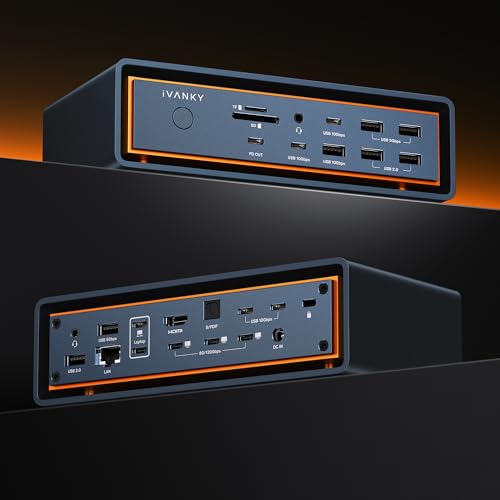
| iVANKY FusionDock Max 2 | 23-in-1 with triple 6K displays for Mac | Premium | |
How to choose a Thunderbolt 5 dock
What Thunderbolt 5 actually adds
The headline is bandwidth. Thunderbolt 5 delivers up to 120 Gbps in a boosted mode and 80 Gbps in each direction, a big jump that leaves room to run demanding displays and fast peripherals simultaneously without them fighting for lanes. In practice that means you can push very large files across the connection and still drive multiple high-resolution screens. To get the full benefit you need a Thunderbolt 5 or USB4 version 2 host; older Thunderbolt 4 and USB4 laptops still work with these docks but at reduced ceilings. Confirm what your laptop’s port supports before you buy.
Displays: resolution, refresh, and the fine print
Multi-monitor support is where these docks differ most, and where the fine print matters. Many can drive a single 8K screen or dual 8K on a Thunderbolt 5 Windows host, and several add triple 4K at high refresh rates for productivity or gaming. The crucial caveat is your laptop, not the dock: base-tier Apple chips typically support just one external display, while Pro and Max chips and Thunderbolt 5 Windows machines unlock more. Decide how many screens you truly need, then verify both the dock and your laptop support that configuration.
Power delivery for your laptop
A good dock should charge your laptop over the same cable that carries data, so the wattage has to match the machine. A large, power-hungry laptop may need 140 watts to charge at full speed under load, while some business docks push up to 180 watts for headroom. Front-facing charging ports for phones and accessories are a bonus, though they often share a smaller power budget. Check your laptop’s charging requirement and pick a dock that meets or exceeds it, so it tops up rather than slowly drains during heavy work.
Ports, storage, and expansion
Count the ports you actually use every day. Thunderbolt 5 downstream ports, USB-A and USB-C, card readers, audio, and Ethernet all add up, and more is generally better for a clutter-free desk. Faster networking matters too: most docks include 2.5-gigabit Ethernet, while a few step up to a full 10-gigabit port for fast network storage. Some docks even build in an M.2 slot so you can add a fast internal SSD to the dock itself. Map your peripherals to the port list before choosing.
The cable is part of the dock
An easy thing to overlook: Thunderbolt 5 speeds depend on a cable rated to carry them, and not every USB-C cable in your drawer qualifies. Most of these docks include a suitable cable, often around a meter, which is short enough to matter if your laptop sits far from the dock or you had hoped to route it behind a desk. Longer certified Thunderbolt cables exist but cost real money, and an uncertified substitute will quietly drop you to lower speeds or drop displays entirely, which is a maddening fault to diagnose. If you plan a tidy cable run, check the included length first and budget for a proper replacement rather than assuming any cable will do.
Backward compatibility and future-proofing
You do not need a Thunderbolt 5 laptop to buy one of these docks, and that is part of the appeal. They are backward compatible with Thunderbolt 4, Thunderbolt 3, and USB4 hosts, so the dock will work today with an older machine at that machine’s ceiling, then unlock its full bandwidth when you upgrade. That makes a good dock one of the longer-lived things on a desk, typically outlasting two or three laptops. The trade-off is paying now for headroom you cannot yet use, so if you have no upgrade in sight and only run a single display, a cheaper Thunderbolt 4 dock may serve you just as well.
Mac, Windows, and cooling
Compatibility and thermals are the last checks. Most docks work with both macOS and Windows, but a few are built for one platform only, so read the compatibility notes carefully if you switch or share machines. Cooling is the other consideration: docks that supply a lot of power run warm, so many add an active fan for stability under load, while others use a fanless aluminum chassis for silence. If a quiet desk matters, favor a well-designed fanless dock; if sustained heavy load is your norm, active cooling earns its keep.
CalDigit TS5 Plus
The best-seller here is also the most complete dock, and for good reason. The CalDigit TS5 Plus packs an extraordinary 20 ports: three Thunderbolt 5, five USB-A and five USB-C at 10 Gbps, DisplayPort 2.1, SD and microSD readers, audio, and, uniquely in this group, a full 10-gigabit Ethernet port that runs ten times faster than the usual gigabit connection. It provides 140 watts of dedicated host charging backed by a 330-watt power supply, so power never runs short across all those ports. Dual USB controllers avoid bottlenecks when several fast devices are connected, and it can drive up to dual 8K displays on supported hosts. For a do-everything desk, it is the standout.
Pros
- Best-seller with an unmatched 20 ports
- Full 10-gigabit Ethernet for fast networks and NAS
- 140W host charging with a robust 330W supply
- Dual USB controllers avoid device bottlenecks
Cons
- Highest price in this comparison
- Large chassis needs desk space and clearance for cooling
Best for: power users who want maximum ports and 10-gigabit networking in one dock.
Anker Prime TB5 Docking Station
The Anker Prime is the value pick, delivering the Thunderbolt 5 essentials at a friendlier price. This 14-in-1 dock includes a Thunderbolt 5 upstream port, two downstream Thunderbolt 5 ports, USB-C and USB-A ports, SD and microSD readers, 2.5-gigabit Ethernet, audio, and an HDMI or DisplayPort output. Bandwidth is the full 120 Gbps, quick enough to move a 150-gigabyte file in about 25 seconds, and it supports up to 8K on a single display or dual 8K on a Thunderbolt 5 Windows laptop. A 140-watt upstream port keeps a demanding laptop charged, and an advanced active cooling system holds performance steady under full load. For most people who want a capable dock without paying flagship prices, it is the sweet spot.
Pros
- Strong value for a full 120 Gbps dock
- 140W upstream charging for demanding laptops
- Active cooling for stability under load
- Dual 8K support on Thunderbolt 5 Windows hosts
Cons
- Fewer total ports than the flagship options
- 2.5-gigabit rather than 10-gigabit Ethernet
Best for: value seekers who want the core Thunderbolt 5 experience for less.
Lenovo ThinkPad Thunderbolt 5 Smart Dock
Lenovo’s Smart Dock is aimed at offices and power users who want the most display and power headroom. It runs the full 120 Gbps and can drive up to three 8K displays at 60Hz, or four monitors in various configurations including high-refresh 4K setups, which is a genuinely large canvas for productivity. Power delivery reaches up to 180 watts, giving even the hungriest notebooks room to charge under load without an extra adapter. Ports span Thunderbolt 5, HDMI 2.1, DisplayPort 2.1, USB-A and USB-C, 2.5-gigabit Ethernet, and combo audio. Its standout is management: a cloud-based fleet manager lets IT teams remotely configure, update, and diagnose docks across an organization. For a business rollout, that is a real advantage.
Pros
- Drives up to triple 8K or four-monitor setups
- Up to 180W power delivery for demanding laptops
- Cloud fleet management for IT teams
- Comprehensive modern port selection
Cons
- Premium price and business orientation
- 2.5-gigabit Ethernet rather than 10-gigabit
Best for: offices and multi-monitor power users who want maximum display and power headroom.
Plugable Thunderbolt 5 Dock
The Plugable dock has a clear identity: native dual HDMI 2.1 and a quiet, no-nonsense design. Its two built-in HDMI 2.1 ports drive up to dual 8K at 60Hz or 4K at 144Hz on a Thunderbolt 5 host, with no adapters or dongles needed, a genuine convenience if your monitors use HDMI. This 16-in-1 dock offers 140-watt laptop charging, six USB-C ports including two front-facing 30-watt charging ports, 2.5-gigabit Ethernet, and fast card readers, all in a TAA-compliant, driverless package that suits IT deployments. It is fanless, so it runs silent, and works across Thunderbolt 5, Thunderbolt 4, and USB4 systems on Windows and macOS. For a clean, quiet HDMI-first setup, it is a smart choice.
Pros
- Native dual HDMI 2.1, no adapters required
- Fanless and silent operation
- Six USB-C ports plus 140W charging
- Driverless and TAA-compliant for IT use
Cons
- HDMI-focused rather than DisplayPort-first
- 2.5-gigabit Ethernet only
Best for: HDMI monitor users who want a silent, driverless dock.
iVANKY FusionDock Max 2
The iVANKY FusionDock Max 2 is built specifically for Mac creatives, and it leans into that focus. With 23 ports and triple Thunderbolt 5 connections, it can drive triple displays up to 6K at 60Hz on Macs with Max chips, a rare capability, while Pro and base chips support fewer screens per Apple’s own limits. Ten USB ports handle up to 10 Gbps each, and it adds an SD and microSD 4.0 reader plus 2.5-gigabit Ethernet. A hybrid cooling system with an internal copper plate, elevated airflow structure, and a built-in fan keeps it stable through long sessions. The important caveat: it is not compatible with Windows or Chrome laptops and is tied to a single Mac. For a Mac-only power desk, it is a specialist standout.
Pros
- Triple 6K display support on capable Macs
- Generous 23 ports for a fully loaded desk
- Robust hybrid cooling for long sessions
- 140W charging and 2.5-gigabit Ethernet
Cons
- Not compatible with Windows or Chrome laptops
- Restricted to one Mac, no host switching
Best for: Mac creatives who want triple displays and maximum ports.
The verdict
Best overall: the CalDigit TS5 Plus. As the best-seller, its 20 ports, 10-gigabit Ethernet, dual USB controllers, and strong power make it the most capable all-around dock for demanding desks.
Best value: the Anker Prime TB5 Dock. It delivers full 120 Gbps bandwidth, 140-watt charging, and active cooling at a mid-range price, covering the essentials most people need without the flagship cost.
Best premium: the Lenovo ThinkPad Smart Dock for its 180-watt power, triple-8K reach, and IT fleet management. The Plugable is the pick for a silent, HDMI-first setup, and the iVANKY FusionDock Max 2 is the specialist choice for Mac creatives who need triple displays.
Frequently asked questions
Do I need a Thunderbolt 5 laptop to use these docks? To get full 120 Gbps performance, yes, or a USB4 version 2 host. Thunderbolt 4 and USB4 laptops still work with these docks but at lower display and bandwidth ceilings.
Can any of these drive two 8K monitors? Several can, on a Thunderbolt 5 Windows host. Your laptop’s chip decides the real limit, though; base-tier Apple chips typically support only one external display, while Pro and Max chips support more.
Will one charge my laptop? These supply 140 watts, and the Lenovo up to 180 watts, over the single connecting cable. Check your laptop’s charging requirement and pick a dock that meets or exceeds it.
Are they compatible with both Mac and Windows? Most are, but read the fine print. The iVANKY FusionDock Max 2, for example, is Mac-only and not compatible with Windows or Chrome laptops.
Do Thunderbolt 5 docks run hot? They can under heavy load, since they supply significant power. Many add an active fan for stability, while fanless models like the Plugable stay silent by using an aluminum chassis to shed heat.
Will one work with my older Thunderbolt 4 laptop? Yes. These are backward compatible with Thunderbolt 4, Thunderbolt 3, and USB4, though you get that host’s lower ceilings until you move to a Thunderbolt 5 machine.
Can I use any USB-C cable with these? No. Full speed needs a cable certified for Thunderbolt 5. Most docks include one, and substituting an uncertified cable can silently reduce bandwidth or drop displays.
This article may contain affiliate links; see our Affiliate Disclosure.