Two machines, one desk, one good keyboard. The problem is never the switching itself; it is what happens the instant you switch away. Windows notice the monitor vanish, panic, and pile every application onto one screen. You come back to a rearranged desktop and a game that dropped out of full screen. Fixing that, not moving a cable, is what you are actually buying.


For gaming specifically, three things separate a KVM that works from one that infuriates: whether it holds enough bandwidth for your refresh rate, whether it lies to your PC about the monitor still being attached, and whether variable refresh survives the trip. The picks below run from a switch that costs less than a game up to a docking station that replaces half your desk.
At a glance
| Product | Standout feature | Price tier | Link |
|---|---|---|---|
| AV Access 8K KVM Docking Station | Dual 8K60 or 4K165, 100W PD, both PCs stay online via shared Ethernet | Premium | |
| TESmart 8K DP 1.4 KVM Switch | EDID emulation plus G-Sync, FreeSync, FEC and DSC support | Premium | |
| UGREEN 8K DP + HDMI KVM Switch | Three monitors from two PCs; 4K at 240Hz | Mid-range | |
| GREATHTEK 8K HDMI Dual Monitor KVM | Two monitors at 8K60 with three USB 3.0 ports, at a budget price | Budget | |
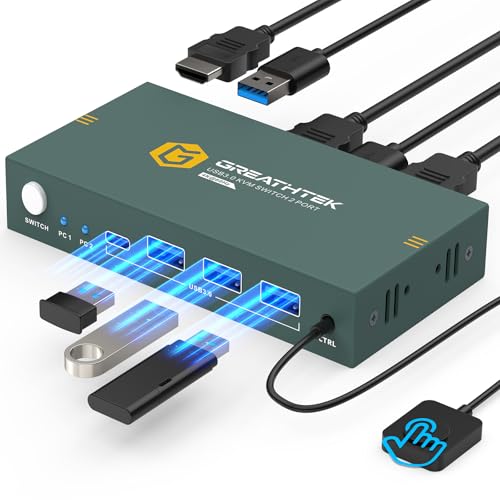
| GREATHTEK 2 Port HDMI KVM Switch | Adaptive EDID and 4K60 for the price of a takeaway | Budget | |
How to choose a KVM for gaming
EDID emulation is the feature that matters most
EDID is the small block of data a monitor uses to tell a computer what it is and what it can do. When a KVM switches away, a basic switch simply removes it, and the PC concludes the screen is gone: windows shuffle onto whatever display remains, full-screen games minimize, and your carefully arranged desktop is rebuilt against your wishes. EDID emulation keeps presenting that data to the idle machine, so as far as it knows nothing happened. TESmart makes emulation the centerpiece of its design, and the budget GREATHTEK offers adaptive EDID. If you switch often, this is the single feature worth paying for.
Bandwidth, and reading the resolution claims properly
Nearly every switch here says 8K. That number is almost never the one that matters, because 8K at 60Hz and 4K at 240Hz consume similar bandwidth, and gamers want the second. Read for the refresh rate at your resolution: the AV Access does 4K at 165Hz on desktops, the UGREEN and TESmart reach 4K at 240Hz and 144Hz respectively. A switch that manages 4K at 60Hz will run your 240Hz monitor at a quarter of its speed, and it will do so silently, without an error, and you may not notice for a week.
DisplayPort or HDMI
DisplayPort 1.4 with DSC compression is generally the better path to high refresh rates, and it is the connection most gaming monitors prefer. That is why TESmart built a DP-only switch and deliberately left HDMI and USB-C off it: fewer compromises, one job done properly. HDMI is more universal and the right pick if your machines include a console or a laptop. Match the switch to the ports you actually have, and check the direction of travel too, since some switches take DisplayPort in and HDMI out or the reverse.
Variable refresh has to survive the switch
G-Sync and FreeSync need the graphics card and the monitor to negotiate directly, and a switch sitting in between can quietly break that. Most listings do not mention it at all, which usually tells you something. TESmart names G-Sync and FreeSync alongside FEC and DSC explicitly. If you have spent money on a variable refresh monitor, do not put a switch in front of it that does not claim to pass it through.
USB 3.0 is not optional for a gaming mouse
A mouse polling at 1000Hz and a keyboard with per-key everything are more demanding of a USB path than people assume, and a switch that drops back to USB 2.0 can introduce a stutter that feels exactly like a bad frame time. Every pick here uses USB 3.0 at 5Gbps, which GREATHTEK notes is ten times USB 2.0. Extra ports are useful for a headset dongle, a stream deck, or an external drive that follows whichever PC is active.
Switching methods, and the underrated remote
Two ways are standard: a button on the box and a wired desktop remote. The remote matters more than it sounds, because the switch itself usually ends up behind the monitors where the cables reach, and reaching back there twenty times a day gets old immediately. Nearly every pick here includes a wired controller you can put beside your keyboard. Check whether keyboard shortcut switching is offered too, since that is the fastest method of all.
AV Access 8K KVM Docking Station
The most popular switch here, and it is really two products in one box. As a KVM it handles dual 8K at 60Hz or 4K at 165Hz from desktops, and dual 4K at 60Hz or a single 4K at 120Hz from laptops over USB-C. As a dock it is an eleven-in-one: HDMI, DisplayPort, three USB 3.2, two USB 3.0, USB-C, an SDXC slot, and 3.5mm audio out, with 100W power delivery so a laptop charges from the same cable that carries its video. The feature that quietly matters most is the shared Gigabit Ethernet: both computers stay online whether or not they are the selected one, so downloads, updates, and background jobs keep running on the machine you are not looking at. One caution from the maker: macOS will only mirror across dual displays here, not extend.
Pros
- Dual 8K60 or 4K165 on desktops: real high refresh headroom
- Both PCs stay online via shared Gigabit Ethernet, even when idle
- 100W power delivery charges a laptop through the same connection
- Eleven ports, replacing a dock and a hub as well as a switch
- USB 3.2 at 10Gbps for fast external drives
Cons
- Expensive, though it replaces several devices
- macOS is limited to mirrored dual displays on this model
Best for: a desk shared by a gaming PC and a work laptop, where the laptop should charge and both should stay online.
TESmart 8K DP 1.4 KVM Switch
The one built for exactly this job and nothing else. It is purpose-made for two DisplayPort 1.4 desktops and two DisplayPort 1.4 monitors, with no HDMI and no USB-C inputs, and that focus is the point rather than a limitation. It carries dual 8K at 60Hz, backward compatible to 4K at 60, 120, and 144Hz, using DSC to fit high refresh rates down the cable. Crucially it names the four technologies gamers actually need: G-Sync, FreeSync, FEC, and DSC, alongside TESmart’s EDID emulation, which is what stops your desktop rearranging itself the moment you switch away. TESmart states the switch went through repeated brand-level compatibility testing during development, which in this category is worth more than a spec.
Pros
- EDID emulation: your windows stay where you left them
- Explicit G-Sync and FreeSync support, which most switches ignore
- DP 1.4 with DSC: dual 8K60, or 4K at up to 144Hz
- Purpose-built for two DP desktops rather than compromised across ports
- Tested against a range of hardware during development
Cons
- The most expensive pick here
- DisplayPort only; no use for a console or an HDMI-only laptop
Best for: two DisplayPort gaming desktops with variable refresh monitors, where nothing may break on a switch.
UGREEN 8K DisplayPort and HDMI KVM Switch
Three monitors from two computers with one click, which is the configuration most switches will not touch. Two DisplayPort 1.4 outputs and one HDMI 2.1 output each carry up to 8K at 60Hz, and the specification that matters for gaming sits alongside it: 4K at 240Hz. That is genuine headroom rather than a marketing number, and it puts this well ahead of the many switches that quietly stop at 4K60. Four USB 3.0 ports handle a keyboard, mouse, and two more devices. It switches by button or by the desktop controller, offers two display modes, and is driver-free across Windows, macOS, and Linux. The aluminum body is doing thermal work rather than decoration at these bandwidths.
Pros
- Three monitors from two PCs, which is rare at any price
- 4K at 240Hz: real high refresh support
- Mixed DisplayPort 1.4 and HDMI 2.1 outputs
- Four USB 3.0 ports, button and desktop controller switching
- Driver-free on Windows, macOS, and Linux
Cons
- No stated EDID emulation or variable refresh passthrough
- Laptops may need checking against the port requirements
Best for: a triple monitor desk shared between two machines, at a fraction of the premium switches.
GREATHTEK 8K HDMI Dual Monitor KVM Switch
Two monitors, two computers, 8K at 60Hz, for a price that undercuts most single-monitor switches. It is the sensible middle of this list: you get the dual-screen setup that makes a KVM worth owning, without the premium that EDID emulation and variable refresh support command. Three USB 3.0 ports run at up to 5Gbps, which GREATHTEK correctly notes is ten times USB 2.0 and matters for a gaming mouse and keyboard. Switching works from the front panel button or a wired desktop keypad, which is the one you will use, since the box lives behind the monitors where the cables reach.
Pros
- Dual monitor support at a genuinely budget price
- 8K at 60Hz across both outputs
- Three USB 3.0 ports at 5Gbps
- Wired desktop keypad included as well as a panel button
Cons
- No stated EDID emulation; expect windows to move on switching
- No mention of G-Sync or FreeSync passthrough
Best for: a dual monitor desk where you switch occasionally rather than constantly, on a budget.
GREATHTEK 2 Port HDMI KVM Switch
The cheapest way to stop crawling under the desk, and it includes the one feature you would not expect at this price. Adaptive EDID is not full emulation, but it does make image transmission more stable and smoother across a switch, which is the failure mode that makes cheap KVMs unbearable. It runs one monitor from two PCs at up to 4K at 60Hz, backward compatible with lower resolutions, over HDMI 2.0 with HDCP so protected content still plays. Three USB 3.0 ports share a keyboard, mouse, scanner, printer, or drives between the machines. Switching is by panel button or the included wired remote, and it is plug and play with no drivers.
Pros
- Costs less than a new game
- Adaptive EDID for more stable switching than most cheap boxes
- 4K at 60Hz with HDMI 2.0 and HDCP
- Three USB 3.0 ports and a wired remote included
- Plug and play, no drivers
Cons
- 4K at 60Hz only; a high refresh monitor will be held back
- Single monitor
Best for: one monitor, two PCs, and anyone testing whether a KVM suits their setup before spending properly.
The verdict
Best Overall: AV Access 8K KVM Docking Station. The most popular pick here and the most capable all-rounder. Dual 8K60 or 4K165 covers gaming properly, 100W power delivery and eleven ports replace a dock, and the shared always-on Ethernet is the sort of feature you only appreciate after your idle PC finishes a download while you game on the other one.
Best Value: GREATHTEK 2 Port HDMI KVM Switch. For the price of a takeaway you get 4K60, three USB 3.0 ports, a wired remote, and adaptive EDID, which is more than the price suggests. If your monitor is 60Hz, this is genuinely all you need.
Best Premium: TESmart 8K DP 1.4 KVM Switch. The only pick that names EDID emulation, G-Sync, and FreeSync together, which is the exact combination that decides whether a KVM ruins a gaming setup. If you have two DisplayPort desktops and a variable refresh monitor, buy this and stop reading.
Two situations to note: the UGREEN if you run three monitors, and the GREATHTEK 8K if you want dual screens without paying for emulation.
Frequently asked questions
Why do my windows rearrange when I switch PCs?
Because the idle computer thinks the monitor was unplugged. Without EDID emulation, the switch stops presenting the display’s identity to the machine you switched away from, and the operating system dutifully piles everything onto a remaining screen. EDID emulation keeps that data flowing so nothing changes. It is the main reason to pay more, and it is why TESmart leads with it.
Will a KVM add input lag?
A good one is imperceptible for video, since it is passing the signal rather than processing it. The place lag creeps in is USB, which is why USB 3.0 matters for a high polling rate mouse; a switch dropping to USB 2.0 can feel like stutter. The bigger practical risk is not lag at all but bandwidth: a switch capping at 4K60 will run a 240Hz monitor slowly and never tell you.
Does G-Sync or FreeSync work through a KVM?
Only if the switch says so. Variable refresh needs the card and monitor to negotiate through the switch, and many simply break it, usually without documenting the fact. TESmart names G-Sync, FreeSync, FEC, and DSC explicitly. If a listing is silent about variable refresh, assume it does not pass it.
DisplayPort or HDMI for a gaming KVM?
DisplayPort 1.4 with DSC generally reaches higher refresh rates and is what most gaming monitors prefer, which is why TESmart built a DP-only switch. HDMI is more universal and necessary if a console or an HDMI-only laptop is involved. Some switches mix both, like the UGREEN, which is the flexible middle.
Do I need 8K if I game at 1440p?
No, and the 8K number is a distraction. What you need is the bandwidth for your resolution at your refresh rate, and 8K at 60Hz is a similar load to 4K at 240Hz. Find the refresh rate figure at your resolution and ignore the headline. A 1440p high refresh setup is well served by anything here that quotes 4K at 144Hz or better.
This article may contain affiliate links; see our Affiliate Disclosure.