Here is the trap, and almost every listing in this category is built on it. A capture card advertised as 4K usually accepts a 4K signal and then records it at 1080p. Both numbers are true. Only one of them is the one you are buying the thing for, and it is not the one printed largest on the box.



Read the picks below with that distinction in hand, because it is what separates a card that costs the price of a sandwich from one costing three times as much. Of the five here, two genuinely record 4K at 60 frames a second. The other three accept a 4K signal and hand your laptop 1080p or 2K, which for most streaming is not a compromise at all. This guide covers console capture, camera work, and using a laptop as a monitor.
At a glance
| Product | Standout feature | Price tier | Link |
|---|---|---|---|
| Guermok 4K@60FPS Capture Card | Records real 4K60, plus 4K60 passthrough and 3.5mm audio in and mic out | Premium | |
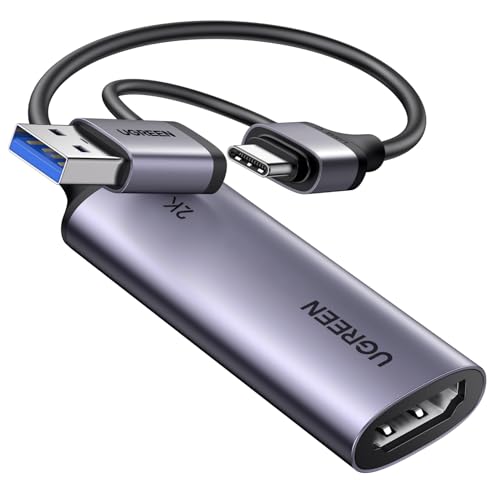
| UGREEN HDMI Capture Card | USB-A and USB-C on one card, 5 Gbps, EMI-shielded alloy shell | Budget | |
| VIXLW Video Capture Card | 1080p60 capture for pocket change; adapter included | Budget | |
| XIIXMASK Capture Card | Five ports: 4K loop-out to a real monitor, plus mic-in | Mid-range | |
| Guermok 4K with PD100W and 90 degrees USB-C | Right-angle plug and 100W charging through the same port | Mid-range | |
How to choose a capture card
Input resolution and capture resolution are different numbers
This is the only thing you really need to understand. Input is what the card will accept without your console refusing to output. Capture is what actually reaches your recording software. The cheap cards here accept 4K at 30Hz and capture at 2K@30Hz or 1080p at 60. The Guermok 4K@60FPS cards accept and capture 4K at 60. Both kinds are useful and clear about it in the fine print; the trouble is only that the headline says 4K on all of them. Decide which number you need before you compare prices, because it is the number that sets the price.
Do you actually need 4K capture?
Often not, and this is worth saying plainly before you spend. Most live streaming is delivered at 1080p, because that is what the platforms and viewers’ connections comfortably handle, so a 1080p60 card feeds your stream exactly what it will broadcast anyway. Where 4K genuinely earns its keep is recording footage you will edit later, since capturing above your delivery resolution gives you room to crop, reframe, and stabilize without losing detail. Camera work benefits more than console streaming does.
Passthrough, loop-out, and playing without lag
Every capture card adds a little delay, and while that does not matter to your viewers it matters enormously to you if you are trying to play. The fix has two names for one idea. Passthrough or loop-out splits the signal, sending one copy to your capture software and another straight out to a monitor or TV with no processing in the way. You play on the clean feed and record the other. If you intend to capture a console you are actively playing, take this as required rather than optional; the Guermok 4K@60 and the XIIXMASK both have it.
USB 3.0 versus USB 2.0, and the frame rate ceiling
Some cards in this category still run on USB 2.0, and the specification is the giveaway: they top out around 1080p at 30Hz, because the port simply cannot carry more. USB 3.0 moves about 5 Gbps and is what makes 1080p60 and above possible. Check for the words USB 3.0 and check the frame rate, not just the resolution. Thirty frames a second looks noticeably stuttery on gameplay in a way it does not on a talking head.
Audio is the part people forget
A bare capture card carries whatever audio rides along the HDMI cable, which is your game or your camera, and nothing else. If you want to talk over it, you either mix in your microphone in software or you use a card with the ports built in. The Guermok 4K@60 has a 3.5mm audio input and a mic output; the XIIXMASK takes a 3.5mm headset or microphone directly. Handling commentary on the card rather than in software means one less thing to get out of sync.
Drivers, ports, and the small print
None of these need drivers or external power, which is the great virtue of the category: plug in, pick the device in your software, done. They work across Windows, macOS, Linux, Android, and in several cases iPad. Two practical notes from the listings themselves. If you are connecting to a tablet, its OTG function has to be enabled first. And more than one maker warns you may need to restart OBS Studio after plugging the card in before it appears.
Guermok 4K@60FPS Capture Card
The card that actually does what the category claims. It captures 4K at 60 frames a second over USB 3.0, and separately passes 4K@60Hz straight through to a monitor, so you can watch a clean, lag-free feed while the recording happens behind you. It handles high refresh rate sources too, taking 2560×1440 at 144FPS and 1080p at 240FPS, which matters if you are capturing a gaming PC rather than a console. Format support runs to MJPEG, YUY2, NV12, and XRGB, giving your software room to choose quality against file size. The 3.5mm audio input and microphone output let you fold commentary in at the card. It is plug and play across Windows, macOS, Linux, Android 5.0 and up, and iPadOS 17 and up, and works with Switch and Switch 2, PS5 and PS4, Xbox Series X and S, Quest headsets, DSLRs, webcams, and TV boxes.
Pros
- Genuine 4K60 capture, not 4K input with 1080p capture
- 4K@60Hz passthrough for lag-free play while recording
- 3.5mm audio in and mic out built into the card
- Takes 2K at 144FPS and 1080p at 240FPS from a gaming PC
- Four capture formats; no drivers or power needed
Cons
- Three times the price of the budget cards
- 4K60 over USB puts real load on an older laptop
Best for: recording footage you will edit later, and anyone who needs to play on a clean monitor while capturing.
UGREEN HDMI Capture Card
The sensible middle, from the most established name in this group. It accepts 4K at 30Hz and captures at 2K@30Hz or 1080p at 60, and UGREEN makes an argument for that pairing rather than apologizing for it: the high input resolution preserves the original quality of the source for post-production while the output stays at a rate your machine and your stream can handle. USB 3.0 gives it 5 Gbps and low delay, feeding Switch, Switch 2, PS4, or PS5 to Twitch without a fuss. The detail that makes it easy to live with is having both USB-A and USB-C on the card, so it fits whatever laptop, tablet, or phone you own now and whatever you buy next. The aluminum shell sheds heat and shields against interference, which is not marketing on a device pushing a video signal down a bus.
Pros
- USB-A and USB-C both on the card; no adapter to lose
- Full 5 Gbps USB 3.0 with genuinely low latency
- EMI-shielded aluminum shell that also dissipates heat
- Broad support: Windows, macOS, Linux, phones, and tablets
- Best-known brand here, at a budget price
Cons
- Captures at 2K30 or 1080p60; not a 4K recorder
- No passthrough, so no clean feed to play from
Best for: most people, most of the time, especially streaming a console at 1080p.
VIXLW Video Capture Card
The cheapest way in, and it does not cut the corner that matters. It is a true USB 3.0 card, not a USB 2.0 one dressed up as one, so it accepts 4K at 30Hz and records at 2K@30Hz or 1080p at 60 rather than stalling at 30. A premium aluminum shell keeps the chipset cool, which is what keeps latency stable over a long session. It works across Windows 7 through 11, macOS, Linux, and Android, with OBS, Zoom, VLC, Twitch Studio, and the rest, and the USB 3.0 to USB-C adapter is in the box so it reaches a modern laptop out of the packet. If you are connecting a tablet, enable OTG first, and test your HDMI source on a monitor before blaming the card.
Pros
- Real USB 3.0 at the lowest price here
- 1080p60 capture, which is what most streams deliver anyway
- USB-C adapter included
- Aluminum shell for stable thermals and latency
- Works with essentially every OS and capture app
Cons
- No passthrough and no audio ports
- Least known brand of the five
Best for: a first capture card, an occasional one, or a spare for the bag.
XIIXMASK Video Capture Card
Five ports instead of two, and each one earns its place. The 4K loop-out is the headline: it sends a clean 4K 60Hz signal to a real monitor while capturing at 1080p60 or 2K30, which is the combination console players actually want. You play on the untouched feed at full quality and let the card hand your laptop a stream-sized copy. There is a 3.5mm socket for a headset or microphone, so commentary goes in at the card rather than being wrangled in software. The aluminum alloy body handles heat, and the cable layout has been redesigned for stability, which is a real concern once you have five things plugged into one small box on a desk.
Pros
- 4K loop-out to a monitor: play clean, capture separately
- Microphone input for commentary without software mixing
- Five ports covering a full console setup
- Aluminum body with a stability-focused cable layout
- Cheaper than the true 4K capture cards
Cons
- Loops out 4K but captures at 1080p60 or 2K30
- Five cables makes it the least tidy option here
Best for: console streamers who want to play on a 4K screen and stream at 1080p, with a mic plugged in.
Guermok 4K Capture Card with PD100W and 90 degrees USB-C
Built for a specific and increasingly common problem: capturing from a device that needs to stay charged while you use it. It captures 4K at 60FPS over USB 3.0 and passes up to 100W of USB-C power delivery through at the same time, so a VR headset or a phone keeps its battery while it is streaming. The 90-degree right-angle USB-C connector on a 3.3-foot cable is the other half of that idea, because a straight plug sticking out of a headset is exactly what snaps first when you turn your head. It takes the same high frame rate inputs as its sibling, 2560×1440 at 144FPS and 1080p at 240FPS, in MJPEG, YUY2, NV12, and XRGB. Plug and play, no drivers, no external power.
Pros
- 4K60 capture and 100W passthrough charging together
- Right-angle connector survives a moving headset or a handheld
- 3.3ft cable rather than a rigid dongle hanging off the port
- Same high refresh rate support: 2K at 144FPS, 1080p at 240FPS
Cons
- The cable is fixed length; you cannot shorten it
- The charging and angle features are wasted on a static console setup
Best for: VR gameplay capture and phone or handheld streaming, where the device must charge as it records.
The verdict
Best Overall: UGREEN HDMI Capture Card. The unglamorous right answer for most people. Streams go out at 1080p, so a 1080p60 card feeds your broadcast exactly what it will send anyway, and this one does it on real USB 3.0 with 5 Gbps, both port types on the card, and a shielded shell from the most established brand here, at a budget price. Buy the expensive card when you have a reason, not by default.
Best Value: VIXLW Video Capture Card. The cheapest here and still genuine USB 3.0 with 1080p60 capture, adapter in the box. If this is your first card, or a spare, there is very little argument for spending more to get the same capture resolution.
Best Premium: Guermok 4K@60FPS Capture Card. The only pick that delivers what the category advertises: real 4K60 recording, 4K60 passthrough so you can play on a clean feed, and audio ports so commentary happens at the card. Worth it if you are capturing camera footage to edit, or if you want headroom to crop and reframe later.
Two specialists to know about. The XIIXMASK if you want to play on a 4K monitor while streaming at 1080p with a mic plugged in, and the Guermok PD100W if you are capturing a VR headset or a phone that has to charge while it works.
Frequently asked questions
Why does my 4K capture card only record 1080p?
Because it is a 4K input card, not a 4K capture card, and that is how most of them are sold. Accepting a 4K signal and recording a 4K signal are separate specifications, and the cheaper cards do the first and not the second. Look for capture or record in the specification rather than input, and check the frame rate alongside it.
Will there be lag when I play?
Through the card, yes, a little, and it is enough to notice on anything reflex-based. That is what passthrough and loop-out are for: they split the signal so a clean copy goes straight to your monitor while the other goes to your laptop. Play on the clean one. If you are capturing a console you are actively playing, buy a card with that feature.
Do these work with an iPad or a phone?
Several do, and the listings say which. The Guermok cards support iPadOS 17 and up and Android 5.0 and up, and the UGREEN covers phones and tablets. One catch worth knowing: a tablet or phone needs its OTG function enabled before it will talk to the card, and that is the usual reason a card that works on a laptop seems dead on a tablet.
Do I need to install drivers?
No. Every card here is driver-free and needs no external power, which is the point of the category. The one quirk more than one maker mentions is that OBS Studio sometimes needs restarting after you plug the card in before the device appears in the source list.
How do I add my voice?
Either mix your microphone in your software, which is free and works with any card here, or buy a card with the ports on it. The Guermok 4K@60 has a 3.5mm audio input and a mic output, and the XIIXMASK takes a headset or mic directly. Doing it at the card means one less thing to drift out of sync during a long session.
This article may contain affiliate links; see our Affiliate Disclosure.